 Main Window
Main Window
Main Window
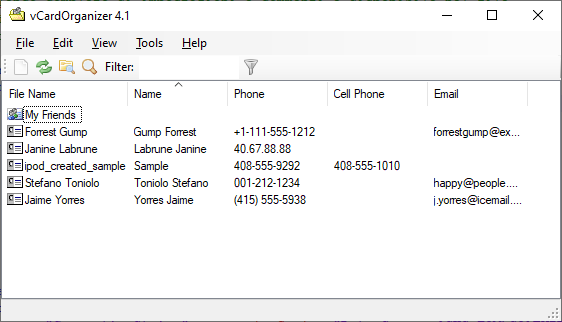
The main window displays the vCards in the working folder. It functions like a typical explorer window with Copy & Paste, Drag & Drop features. You can choose your preferred view style: tiles, icons, list, or details. Double-clicking any vCard will open the corresponding vCard Window.
| File Menu | |
|---|---|
| New | Create a new vCard using the New vCard Template. You can replace New.vcf in your Documents folder with another template. Download alternative samples. |
| Settings | Access the settings window to change the Working Folder and the New vCard Template. |
| Page Setup |
In the Page Setup dialog box, you can:
|
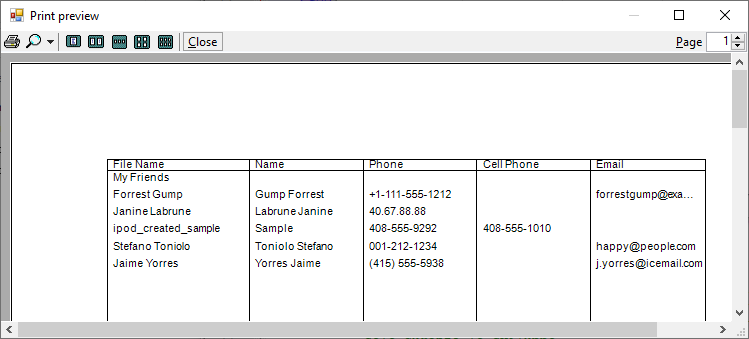
| Prints all the vCards in the working folder. Ensure you have a default printer set in the Printers folder. | |
| Print Preview | Preview how your vCards will look before printing. |
| Exit | vCardOrganizer will close when all vCard windows are closed. |
| Edit Menu | |
|---|---|
| Copy | Copy the selected vCards to the clipboard. |
| Paste | Paste the vCard files previously placed in the clipboard. |
| Delete | Delete the selected vCard files. |
| Merge | Create a new group vCard containing all the selected vCard files. |
| Split | Create a set of vCards, one for each item in the selected vCard group. |
| Select All | Select all vCard files. |
| View Menu |
|---|
| Choose visualization style: tiles, icons, list, or details. |
| Tools Menu | |
|---|---|
| Find a vCard | Search for the specified text within the vCard files in the Main Window. |
| Find Duplicates | Find pairs of vCards with the same Name, Address, Telephone Number, and/or Email. |
| Add Formatted Name | Add the Formatted Name property to all vCards. |
| Add Phone Prefix | Add or remove a Phone Prefix to all vCards. |
| Rename vCards | Rename all vCards with the Formatted Name. |
| Backup | Copy all the vCard files in the Working Folder to a new location. |
| Restore | Open a vCardOrganizer view using a different folder. This allows you to work with two vCardOrganizer Main Windows simultaneously to compare and update them. |
| Update Last Revision | Automatically update the Revision field after each vCard save. |
| Help Menu |
|---|
| Help Index and About Dialog |